
Tired of struggling to find the perfect product on Amazon with the wrong keywords? Amazon Lens is Amazon’s powerful visual search tool that lets you search by picture, using your camera, a screenshot, or even a barcode.
Whether you want to scan an item you saw in a store, shop a look from social media, or instantly reorder a product by scanning its barcode, this guide will show you exactly how it works. We’ll cover the three core modes of the Amazon Lens feature, image recognition, barcode scanning, and QR payments, with a focus on the first two, helping you search smarter and find what you need faster.
What is an Amazon lens?
Amazon Lens is an AI-powered visual search feature built directly into the Amazon Shopping app. It allows you to search for products by taking a photo or uploading an image from your phone’s gallery. Think of it as a reverse image search specifically for Amazon’s massive product catalog. Instead of typing “women’s red running shoes,” you can simply snap a picture of a pair you like, and Amazon Lens will find them, or visually similar options, for you.
The Amazon Lens app isn’t a separate download; the feature is integrated into the main Amazon app for both iOS and Android.
How Does Amazon Lens Work?
How does Amazon Lens work? It uses advanced image recognition and machine learning. When you take or upload a photo, Amazon’s AI analyzes the image to identify objects, colors, patterns, textures, and even specific brands or logos. It then compares these visual attributes against millions of products in Amazon’s catalog to find the closest matches.
The technology has three primary scanning modes:
- Image Recognition/Visual Search: For finding products by their appearance.
- Barcode Scanning: For finding an exact product by its UPC or EAN barcode.
- QR Code Scanning: For making payments or accessing special promotions, similar to standard fintech apps.
Why Use Amazon Lens?
There are several compelling reasons to use this feature:
- Incredibly User-Friendly: Just point, shoot, and let Amazon handle the search.
- Saves Time: Eliminates the guesswork of trying to describe a unique item with text. Visual search often yields faster, more accurate results.
- Discovers Related Items: It’s excellent for finding products with a similar style, color, or pattern, which is perfect for fashion, home decor, and more.
How to Get the Amazon Lens App
As mentioned, there is no standalone Amazon Lens app download. To use Amazon Lens, you simply need the official Amazon Shopping app installed on your smartphone.
- For iPhone Users: Go to the Apple App Store, search for “Amazon Shopping,” and download/install it.
- For Android Users: Go to the Google Play Store, search for “Amazon Shopping,” and download/install it.
- Once installed, open the app and sign in to your Amazon account. The Lens feature is ready to use inside the app.
How to use Amazon Lens Step-by-Step:
Here is your complete guide on how to use Amazon Lens effectively.
Step 1: Access the Camera Icon
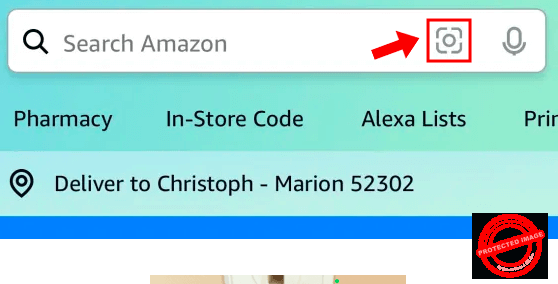
Open the Amazon app on your mobile device. Look for the search bar at the top of the screen. On the right side of the search bar, next to the microphone icon, you will see a small camera icon. Tap it to launch Amazon Lens.
Step 2: Choose Your Scanning Mode
You will now see several options at the bottom of the screen. Select the one that fits your need:
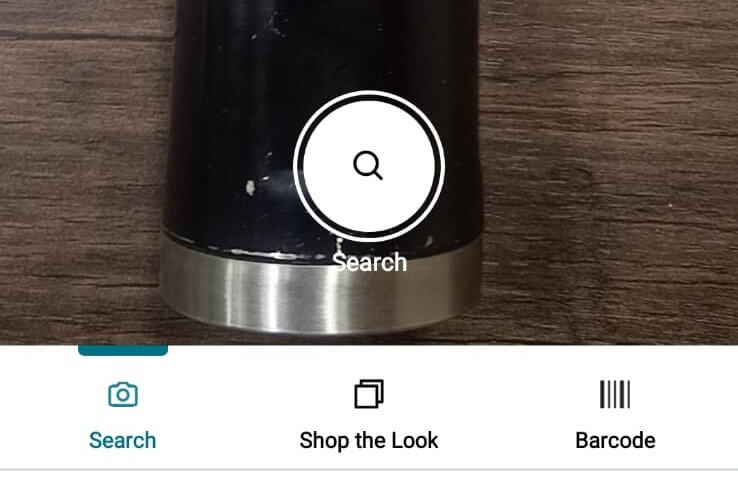
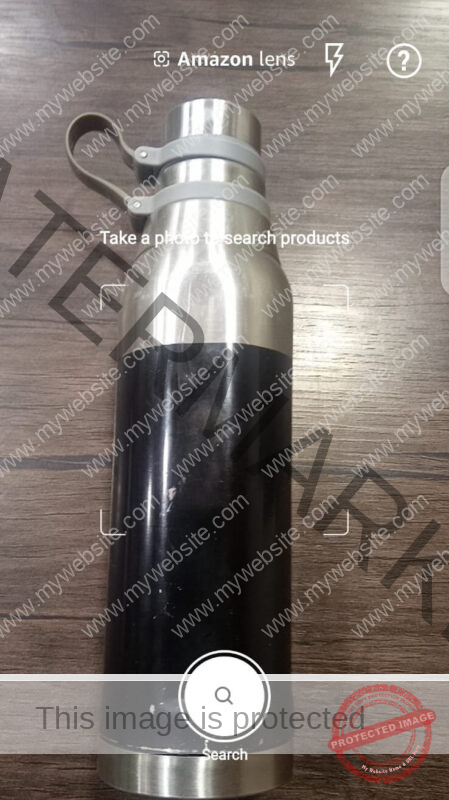
- Search (Camera): This option turns on your camera to scan a physical item. Hold the item in a well-lit area and ensure it’s clearly within the frame. You can use the flash or pinch to zoom. Tap the shutter button to capture the image and start your Amazon search by picture.
- Shop The Look (Photo Gallery): Tap this yellow button to upload an existing photo from your phone’s gallery. This is perfect if you saved a picture from social media, the internet, or took a photo earlier. Amazon Lens will analyze it and find similar products.
- Barcodes: Select this mode to scan a physical product barcode. This is ideal for quickly reordering an item you already own or for comparing prices by scanning a barcode in a physical store. Simply center the barcode in the frame to scan it.
- QR Codes: Use this to scan Amazon payment or promotional QR codes.
Step 3: Review Your Visual Search Results
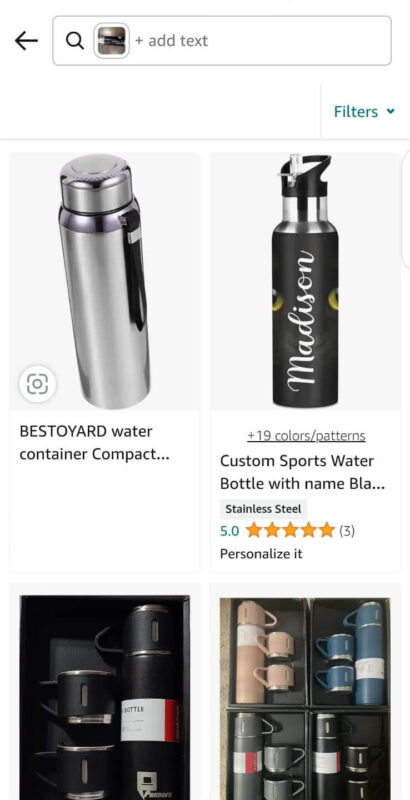
After you take or select a photo, Amazon’s AI works its magic. Within seconds, you’ll be taken to a search results page populated with products that visually match your image. You can scroll through the results, and just like a standard text search, you can filter by category, price, brand, or customer reviews. Tap on any product to go to its detail page and make a purchase.
Tips for Best Results with Amazon Search by Picture
To get the most accurate matches when you search on Amazon by picture, keep these tips in mind:
- Good Lighting: Ensure the item is well-lit to help the AI distinguish details and colors.
- Clear Focus: Make sure the image is sharp and not blurry.
- Isolate the Subject: Try to have a single, clear subject against a simple, uncluttered background for the best results.
- Multiple Angles: If your first scan doesn’t yield the perfect match, try taking a photo from a different angle.
Conclusion
For sellers, understanding features like Amazon Lens is crucial for visibility. How does Amazon Lens work for sellers? It means your product images, reviews, and listing quality all affect performance for the algorithm to recognize them.
AMZDUDES specializes in helping sellers optimize their product listings with their professional Amazon SEO services, including taking professional photos that are more likely to appear in visual search results. If you’re a brand looking to leverage every Amazon feature to boost visibility, our team of seasoned professionals is here to help. Book a consultation with AMZDUDES today.
Frequently Asked Questions
1. Is Amazon Lens a separate app?
No, Amazon Lens is a feature built directly into the main Amazon Shopping app for iOS and Android.
2. Can I use Amazon Lens on my computer?
The camera and image upload features are designed for the mobile app. However, you can sometimes find a “search by image” option on the desktop site, though the full Lens experience is on mobile.
3. Why are my Amazon Lens results not accurate?
Results can vary based on image quality, lighting, and the uniqueness of the item. Try retaking the photo with better lighting and a clearer background. If the exact item isn’t sold on Amazon, Lens will do its best to show you visually similar alternatives.
4. Does Amazon Lens work for any product?
It works best for physical products with distinct visual characteristics, like clothing, home goods, electronics, and toys. It is less effective for searching for digital goods or services.