
Key Takeaways
- An Amazon browse node is a unique category ID that determines where your product appears across Amazon’s storefront and directly impacts discoverability and Best Seller Rank (BSR).
- Choosing the correct browse node improves category placement, product visibility, related product recommendations, and eligibility for category-specific badges.
- The Amazon Browse Tree Guide (BTG) is the most reliable resource for finding valid browse nodes and identifying the most accurate category path for your product.
- Sellers can change an Amazon browse node through Seller Central, flat file uploads, or Seller Support depending on listing restrictions and account limitations.
- Using the wrong browse node can lead to poor rankings, lower browse traffic, category mismatches, and missed opportunities for stronger conversion performance.
If you’ve spent any time managing Amazon listings, you’ve probably noticed that two products in the same “category” can end up in completely different places across Amazon’s store. One shows up exactly where shoppers are looking; the other disappears into the void. Nine times out of ten, the difference comes down to the browse node.
This guide covers everything you need to know, what an Amazon browse node actually is, how to find yours, how to read the Browse Tree Guide, and exactly how to change your browse node when something’s gone wrong.
What Is an Amazon Browse Node?
An Amazon browse node is a unique numeric ID that tells Amazon precisely which category shelf your product belongs on. Think of Amazon’s store as a giant physical warehouse with thousands of aisles and sub-aisles. Every browse node is the address of one of those shelves.
For example, the browse node 172282 maps to Electronics, while 7147441011 maps all the way down to Electronics > Camera & Photo > Bags & Cases > Backpacks. The deeper you go in the tree, the more specific and often more valuable the node becomes.
Amazon Browse Node Meaning in Practice
Every ASIN on Amazon is assigned at least one browse node. This assignment controls:
- Which category does your product appear in when a shopper is browsing (not just searching)
- Which Best Seller Rank (BSR) calculation does your product feed into
- Whether your product qualifies for category-specific badges like “Best Seller” or “Amazon’s Choice.”
- How Amazon’s algorithm groups your product with related listings
The Amazon browse node meaning is simple on paper: it’s a classification ID. But the downstream effects on your visibility, ranking, and conversions are anything but simple.
Browse Node vs. Product Category vs. Browse Classification
These three terms get used interchangeably, but they’re not the same thing:
- Product category: the broad label Amazon shows shoppers (e.g., “Electronics”). It’s a display name.
- Browse node / Amazon category node: the actual numeric ID behind that category. This is what Amazon’s systems read.
- Browse classification: the full path from the root category down to your specific node (e.g., Electronics > Camera & Photo > Bags & Cases > Backpacks). This is the breadcrumb trail built from linked browse nodes.
When you’re working in Seller Central or uploading a flat file, you’re dealing with the numeric ID. The display names you see on the storefront are just the human-readable labels attached to those IDs.
Why Browse Nodes Matter for Your Rankings and Discoverability
Here’s something a lot of sellers miss: strong keyword rankings and the right browse node are two different things, and you need both.
Keyword ranking gets your product in front of shoppers who are actively searching. Browse node placement gets your product in front of shoppers who are browsing, clicking through category pages, exploring sub-categories, and discovering products they didn’t know they needed. On Amazon, a significant portion of purchases comes from browse-driven discovery, not just search.
How Amazon Uses Browse Nodes
Amazon uses your browse node to:
- Calculate your BSR: your Best Seller Rank only exists within the context of a browse node. If you’re in the wrong node, you’re competing (and being ranked) in the wrong pool.
- Populate “related products” and “customers also viewed” sections: Amazon groups products by node to generate these recommendations.
- Feed category-specific promotions and deals pages: some promotional placements are only available within certain nodes.
- Determine eligibility for category-specific programs: some browse nodes have additional requirements or benefits tied to them.
Niche Sub-nodes vs. Broad Parent Nodes
This is where strategy comes in. If you’re in a broad parent node like Sports & Outdoors, you’re competing against hundreds of thousands of products for a BSR ranking. But if you move to the leaf node, the most specific sub-category that accurately describes your product, you’re in a much smaller pool.
A smaller pool means a more achievable BSR badge. A BSR badge means a conversion rate lift. That’s why savvy sellers spend time in the Amazon browse tree guide specifically looking for the most specific, accurate node available, not just the most obvious one.
That said, broad nodes aren’t always wrong. If your product genuinely competes across a wide category and you have the volume to earn a strong BSR there, staying in a higher-level node can work in your favour. The keyword is accurate, you should always be in the node that most precisely describes what you’re selling.
How to Find Your Product’s Current Browse Node
Before you think about changing anything, you need to know where you currently stand. Here are three reliable methods.
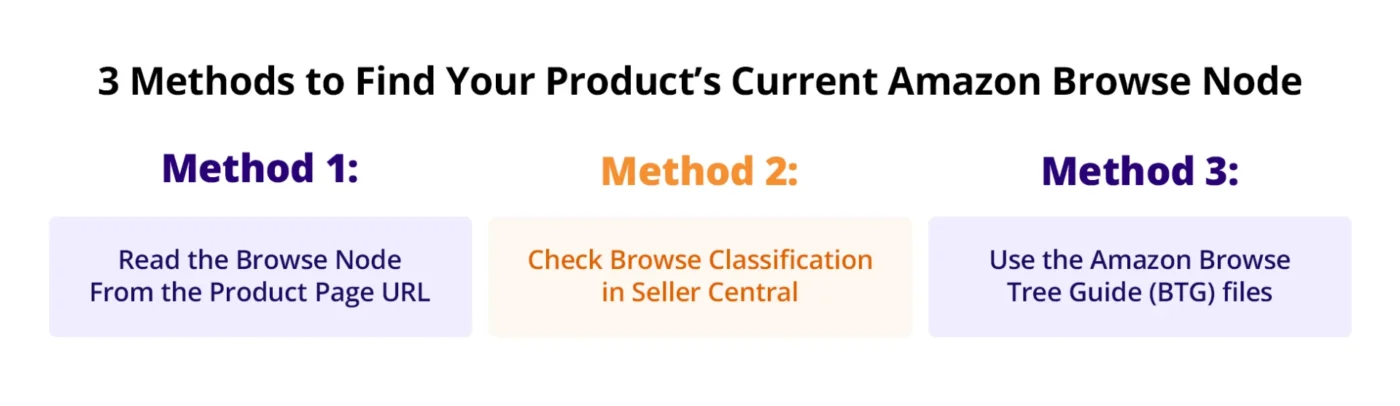
Method 1: Read the Browse Node From the Product Page URL
This is the fastest method for any ASIN you can access on Amazon’s storefront.
- Go to your product listing on Amazon.
- Look at the URL in your browser. Find the section that reads /ref=… and look earlier in the URL for a pattern like node=XXXXXXXXXX.
- That number is your current browse node ID.
Alternatively, scroll to the Product Details section at the bottom of your listing page. Under “Best Sellers Rank,” you’ll see something like: #1,423 in Sports & Outdoors (See Top 100 in Sports & Outdoors) followed by #12 in Yoga Mats. Each of those clickable category links corresponds to a specific browse node.
Method 2: Check Browse Classification in Seller Central
- Log in to Seller Central and go to Inventory > Manage All Inventory.
- Find the ASIN in question and click Edit.
- Navigate to the Product Details tab (sometimes labelled “Vital Info” depending on your category).
- Look for the field labelled Browse Classification or Product Type. This shows you the full node path assigned to your listing.
This is the most definitive view because it shows exactly what Seller Central has on record — not just what’s rendering on the storefront.
Method 3: Use the Amazon Browse Tree Guide (BTG) files
This method is covered in detail in the next section, but here’s the quick version: download the BTG for your category from Seller Central, open the spreadsheet, and search for your product type. The file maps every product type to its corresponding browse node ID.
This is the method you’ll want to use when you’re proactively finding the right node, not just confirming the current one.
Quick Shortcut: Use Third-party Tools
If you want to look up a competitor’s browse node, tools like Keepa and ASIN Fetcher show browse node data alongside price history and rank data. Paste in a competitor ASIN, and you’ll see their node assignment immediately. This is useful for benchmarking. If the top 10 products in your niche are all in a specific sub-node and you’re sitting in a broader parent node, that’s a signal worth acting on.
Understanding the Amazon Browse Tree Guide
The Amazon Browse Tree Guide (BTG) is Amazon’s official reference document that maps every product type to its corresponding browse node. It’s the definitive source for finding the correct Amazon browse nodes list for your marketplace and category.
Where to find and download the BTG
- Log in to Seller Central.
- Go to Inventory > Add Products via Upload.
- Click on Download an Inventory File.
- Select your product category from the dropdown.
- Under the file options, you’ll see a link to download the Browse Tree Guide for that category. Download it as a spreadsheet (.xlsx).
One important note: the BTG is marketplace-specific. The US BTG and the UK BTG have different node IDs for the same categories. Always download the BTG for the marketplace where your listing lives.
How to read the BTG
When you open the BTG spreadsheet, you’ll typically see these key columns:
| Column | What it means |
| Browse Node ID | The numeric ID you’ll use in your listing or flat file |
| Browse Node Name | The human-readable label for that node |
| Product Type | The product type string you’ll use in a category flat file |
| Is Valid (Yes/No) | Whether this node is currently active and accepted by Amazon |
| Node Path | The full hierarchy from root to leaf |
Your job is to find the row where the Product Type and Browse Node Name most accurately match what you’re selling. Once you have that row, the Browse Node ID in the same row is what you’ll use.
3 Common BTG Mistakes to Avoid
- Using a parent node when a leaf node exists: If the BTG has a specific sub-category for your product, use it. Amazon wants the most specific and accurate classification. Assigning a parent node when a valid leaf node exists can lead to Amazon reclassifying your product, often to somewhere you don’t want.
- Using the wrong marketplace, BTG: If you copy a browse node from the US BTG and apply it to your UK listing, you’ll get an error or, worse, a silent miscategorisation. Always match the BTG to the marketplace.
- Using a node marked “Is Valid = No”: Amazon periodically deprecates old nodes and replaces them with new ones. If you use a deprecated node, your upload will either fail or Amazon will reroute your listing somewhere unexpected. Always check the validity column before using a node ID.
How to Change Your Browse Node on Amazon: Step by Step
This is the section most sellers are here for. Here are three routes to changing your Amazon browse node, depending on your situation.
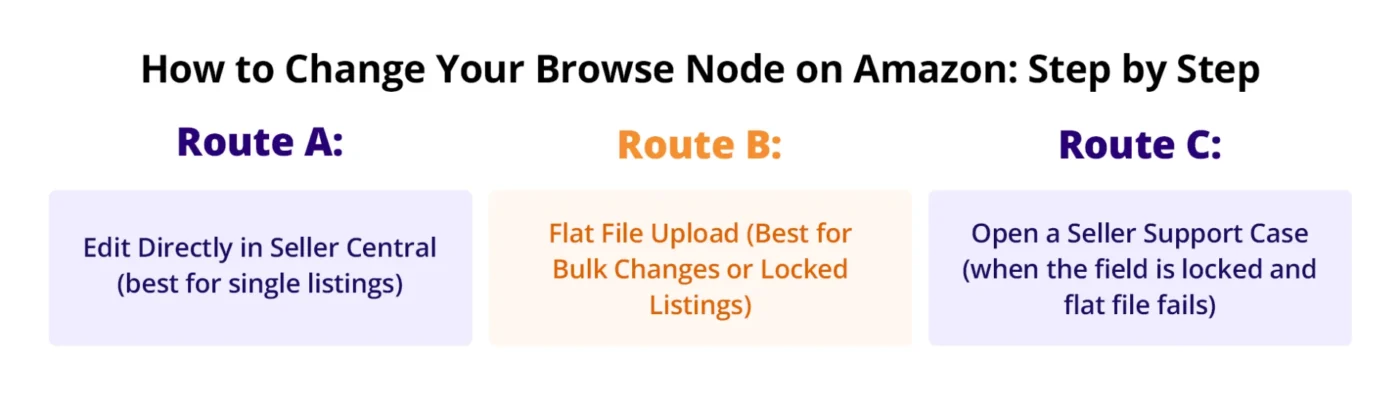
Route A: Edit Directly in Seller Central (best for single listings)
This is the simplest route and works for most standard listings that haven’t been locked by Amazon.
- Go to Inventory > Manage All Inventory.
- Find your listing and click Edit.
- Click on the Product Details tab (or Vital Info, depending on your category).
- Look for the Category or Browse Classification field. Use the dropdown to navigate to the correct sub-category path. This is where having your BTG open in another tab helps, you can follow the hierarchy to the right leaf node.
- Save your changes.
Amazon will typically process the update within 24 to 72 hours. Don’t panic if the change doesn’t show immediately on the storefront, give it a full business day before assuming something went wrong.
When this route doesn’t work: If the category or browse classification field is greyed out or locked, Seller Central is telling you that this field can’t be edited through the UI for this listing. Move to Route B or C.
Route B: Flat File Upload (Best for Bulk Changes or Locked Listings)
The flat file method gives you more control and is the go-to solution when the Seller Central UI won’t let you make the change directly. It’s also the right method when you need to update multiple ASINs at once.
Step 1: Download the correct category template
In Seller Central, go to Inventory > Add Products via Upload. Select your product category and download the inventory file template for that category. Make sure this is the category template, not the BTG file, they’re different downloads.
Step 2: Open the template and locate the right columns
Open the template in Excel or Google Sheets. You’ll need to fill in at a minimum:
- SKU: your internal seller SKU for the product
- product-id: the ASIN or EAN
- product-id-type: set to “ASIN” or “EAN” accordingly
- item-type or node: this is where you enter your new browse node ID from the BTG
- update-delete: set this to “Update” (not “Delete”, this is a common and painful mistake)
Step 3: Fill in only the fields you’re changing
You do not need to fill in every column. For a browse node change, fill in the required identification fields (SKU, ASIN) and the node/item-type field. Leave everything else blank. If you fill in other fields incorrectly, you risk overwriting data that was correct.
Step 4: Upload the file
Go back to Add Products via Upload and upload your completed template file. Amazon will validate it and show you a processing report. Check the report for errors. If rows show errors, the node either doesn’t match the product type or is invalid.
Step 5: Monitor the processing report
Processing usually takes 15–30 minutes for small files. Download your processing report and check that all rows show “Success.” If you see errors, the error code will tell you exactly what went wrong (see the troubleshooting section below).
Route C: Open a Seller Support Case (when the field is locked and the flat file fails)
Some listings, particularly those with brand registry complications, ungated category issues, or previous compliance flags, have their browse node locked at Amazon’s end. In these cases, neither the Seller Central UI nor a flat file upload will work. You’ll need to escalate via Seller Support.
How to Open the Case Effectively:
- Go to Help > Contact Us > Selling on Amazon > Products and Inventory > Fix a Product Page.
- In the case title, write: “Request to update browse node for ASIN [your ASIN] incorrect categorisation.”
- In the body of the case, include:
- The ASIN
- The current browse node ID and path
- The requested browse node ID and path (from the BTG)
- The reason for the change (e.g., the product is miscategorised, BSR is appearing in the wrong category)
- The BTG file name and row number where you found the correct node
Expected turnaround: 2 to 5 business days for standard cases. If the first response is a copy-paste brush-off, reply with the same information again and ask for escalation to the cataloguing team specifically.
How to Verify Your Browse Node Change Went Through
Once sufficient time has passed (at least 24 hours), verify the change through two places:
- The product page URL on Amazon’s storefront, browse to your listing, and check the node ID in the URL or look at the BSR categories listed in the Product Details section.
- Seller Central > Manage Inventory > Edit > Product Details, this should now show the updated browse classification path.
If both places show the new node, you’re done. If Seller Central shows the update but the storefront still shows the old node, give it another 24 hours, there’s often a cache lag between back-end and front-end updates.
When Should You Actually Change Your Browse Node?
Not every browse node situation needs action. Here’s how to decide.
Signs Your Current Node is Wrong
- Your BSR category doesn’t match your product. If you’re selling a yoga mat and your BSR is showing under “Exercise & Fitness > Weight Training,” something’s off.
- Competitor products you’d expect to appear alongside yours are nowhere to be seen in the “customers also viewed” carousel.
- Your browse traffic is disproportionately low compared to your search-driven traffic. You can get a sense of this through Seller Central’s traffic reports under Business Reports.
- You’re not eligible for a “Best Seller” badge in what should be your category, even though your sales volume should qualify you.
Strategic Reasons to Change Your Node
Beyond fixing errors, some sellers intentionally research the Amazon browse tree guide to find a more strategic node placement. Specifically:
- Moving to a smaller sub-node to win a BSR badge faster: A #1 Best Seller badge in a specific sub-category lifts conversion rates noticeably. If you’re currently sitting at #500 in a massive parent category but could be #3 in a relevant sub-category, the move is often worth making.
- Aligning with a category that has stronger shopper intent: Some category pages attract buyers who are further down the purchase funnel than others.
When NOT to Change Your Browse Node
If your current node is accurate, your BSR is reasonable, your conversion rate is healthy, and your browse traffic is performing well, don’t touch it. Every change carries a small risk of temporary disruption to your BSR and ranking signals. If something is working, leave it alone.
Amazon Browse Node Troubleshooting: Common Errors and Fixes
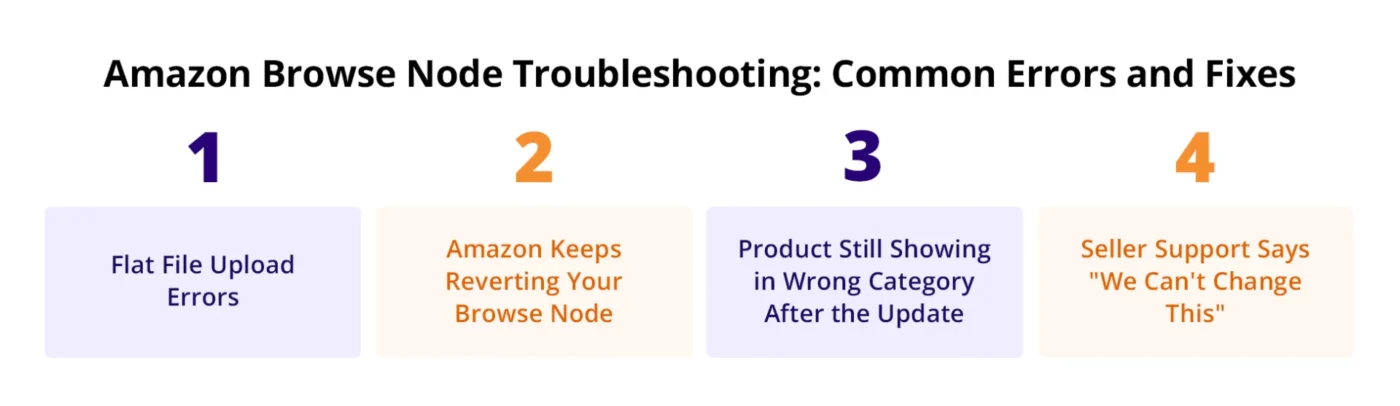
1. Flat File Upload Errors
- Error 8541: Contribution not accepted: This error means the value you’ve entered in a field conflicts with existing data on the listing, often set by another contributor (such as the brand owner in the case of a reseller). You’ll need to open a Seller Support case to resolve the conflict, the flat file alone won’t override a brand-level contribution.
- Error 8026: Invalid value for browse node: The node ID you’ve entered doesn’t match the product type or is not a valid leaf node for your category. Go back to the BTG, verify the node ID, and confirm the “Is Valid” column reads “Yes.” Double-check that you’re using the right marketplace BTG.
2. Amazon Keeps Reverting Your Browse Node
This is one of the most frustrating things sellers encounter. You make the change, it shows up correctly for a few days, then Amazon reverts it. The most common causes are:
- A brand registry contributor is overriding your changes: If the brand owner of the product has submitted different categorisation data, Amazon will prioritise it over your updates. In this case, only the brand owner can fix it, or you need to work through a Seller Support case to flag the conflict.
- The listing has a suppression issue, which causes Amazon to reset it to default attributes periodically. Check your listing health dashboard for any suppressed attributes.
- A product type mismatch: If the browse node you’re assigning doesn’t align with the product type field on your listing, Amazon’s automated systems will sometimes override your node assignment. Make sure both the node ID and the product type in your flat file are consistent with what the BTG shows.
3. Product Still Showing in Wrong Category After the Update
If your Seller Central data shows the correct node but the storefront still shows the wrong category, this is almost always a cache issue that resolves within 24–72 hours. However, if it’s been more than a week and the storefront still doesn’t reflect the change, open a Seller Support case. Include a screenshot of your Seller Central listing showing the correct node alongside a screenshot of the live product page showing the incorrect categorisation.
4. Seller Support Says “We Can’t Change This”
This happens. The first-line support response is often automated or unhelpfully generic. Don’t accept it. Reply to the case and specifically ask to be escalated to the cataloguing team or the listings quality team. Include your BTG reference (file name, product type, node ID, and “Is Valid = Yes”) to demonstrate that the node change is both valid and supported by Amazon’s own documentation. Persistence almost always works here, the cataloguing team has the tools to make changes that front-line support cannot.
Conclusion
Getting your Amazon browse node right isn’t a one-time task, it’s part of maintaining a healthy, well-optimised listing. The wrong node doesn’t just affect your BSR; it affects which shoppers find you, which badges you’re eligible for, and how Amazon’s systems group and recommend your product.
Use the Amazon Browse Tree Guide to confirm you’re in the most specific and accurate node for your product. Check your categorisation when you launch a new ASIN, when you see an unexplained BSR shift, and whenever you expand into a new marketplace. And when something needs to change, you now have three clear routes to fix it: through Seller Central, via flat file, or through a well-structured Seller Support case.
If you treat browse node management as part of your standard listing audit process rather than something you only address when things go wrong, you’ll stay ahead of categorisation issues before they cost you visibility and sales.
FAQs
1. What is an Amazon browse node?
An Amazon browse node is a unique numeric category identifier that tells Amazon exactly where a product belongs in its catalog structure. Browse nodes determine category placement, Best Seller Rank calculations, and how products appear to shoppers browsing categories.
2. How do I find my Amazon browse node?
You can find your Amazon browse node by checking your product page URL, reviewing the Best Sellers Rank section on your listing, or navigating to Seller Central → Manage Inventory → Product Details to view your browse classification path.
3. How do I change a browse node on Amazon?
To change a browse node on Amazon, go to Seller Central → Manage Inventory → Edit Listing → Product Details and update the category path if editable. If the field is locked, use a flat file upload or submit a Seller Support case with the correct Browse Tree Guide reference.
4. What is the Amazon Browse Tree Guide (BTG)?
The Amazon Browse Tree Guide is Amazon’s official spreadsheet that maps browse node IDs, category paths, and product types. Sellers use it to identify valid browse nodes and select the most accurate category assignment for listings.
5. Can changing an Amazon browse node improve rankings?
Yes. Changing to a more accurate and specific browse node can improve visibility, place your product in a more relevant competitive category, increase browse traffic, and create opportunities to earn stronger BSR rankings and category badges.