

Key Takeaways
- How to Change Brand Name on Amazon depends on your listing type, Brand Registry status, and whether Amazon allows direct edits to the ASIN.
- To change the brand name on an Amazon listing, sellers can edit the field directly through Seller Central if the listing is new and the field remains editable.
- If the field is locked, changing the brand name on Amazon Seller Central typically requires opening a Seller Support case and submitting supporting documentation.
- An Amazon brand name change inside Brand Registry is tied to trademarks and often requires updated legal documentation before approval.
- When you change the brand name on Amazon, make sure the brand matches your packaging, invoices, and trademark records to avoid listing suppression or case rejection.
If you’ve ever stared at a listing with the wrong brand name and wondered what to do next, you’re not alone. Whether it’s a typo, a rebrand, or a name that got auto-assigned incorrectly, changing a brand name on Amazon is one of those tasks that looks simple on the surface, but can get surprisingly tricky depending on your account setup and listing history.
After working with hundreds of Amazon sellers over the years, we can tell you this: there’s no single universal method. The right approach depends on whether you’re Brand Registered, whether the listing has sales history, and whether the field is editable at all. This guide walks you through every scenario of how to change brand name on Amazon, step by step, so you can get it right the first time.
Can You Change Brand Name on Amazon?
Yes, you can change brand name on Amazon, but how you do it depends on your situation. Amazon treats brand names as a core part of a product’s identity. Once a listing gets sales traction, Amazon becomes more protective of that brand field because misuse can harm consumers, create counterfeit risk, and pollute the catalog.
There are two distinct scenarios you need to differentiate:
- Scenario A: Changing the brand name on an individual Amazon listing. This is for sellers who want to correct or update the brand field on a specific ASIN. This is the most common request, and it’s achievable through Seller Central, either directly or via a support case.
- Scenario B: Changing your brand name within the Amazon Brand Registry. This applies only if you’ve enrolled a brand in Amazon’s Brand Registry program. This is tied to your trademark, and Amazon does not allow casual changes here. You’ll need to submit documentation.
Understanding which scenario applies to you will save you hours of back-and-forth with Amazon Seller Support.
5 Common reasons sellers need to change brand names on Amazon:
- A typo was made when creating the listing
- The brand was auto-populated incorrectly by Amazon’s catalog
- The business went through a rebrand
- A wholesale or private label product was listed under the wrong brand
- You inherited a listing from a previous seller
Method 1: How to Change Brand Name on Amazon Listing (Non-Brand Registered Sellers)
If you’re not enrolled in Amazon Brand Registry and your listing is relatively new or has low sales history, you may be able to change the brand name directly from Seller Central. Here’s how:
Step 1: Log into Amazon Seller Central
Go to sellercentral.amazon.com and sign in with your seller account credentials.
Step 2: Navigate to Your Inventory
From the top navigation menu, hover over Inventory and click Manage All Inventory from the dropdown.
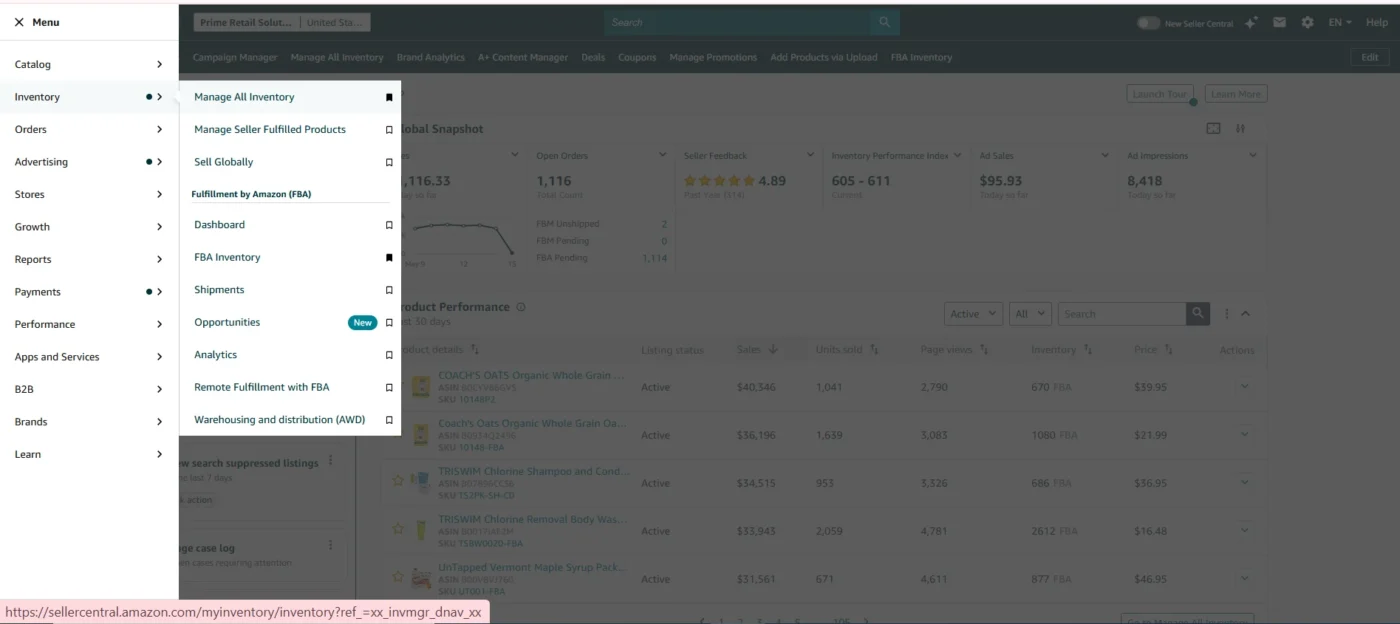
Step 3: Find the Listing You Want to Edit
Use the search bar within your inventory to locate the specific product. You can search by ASIN, SKU, or product name. Once you find it, click the Edit button on the right-hand side of that listing row.
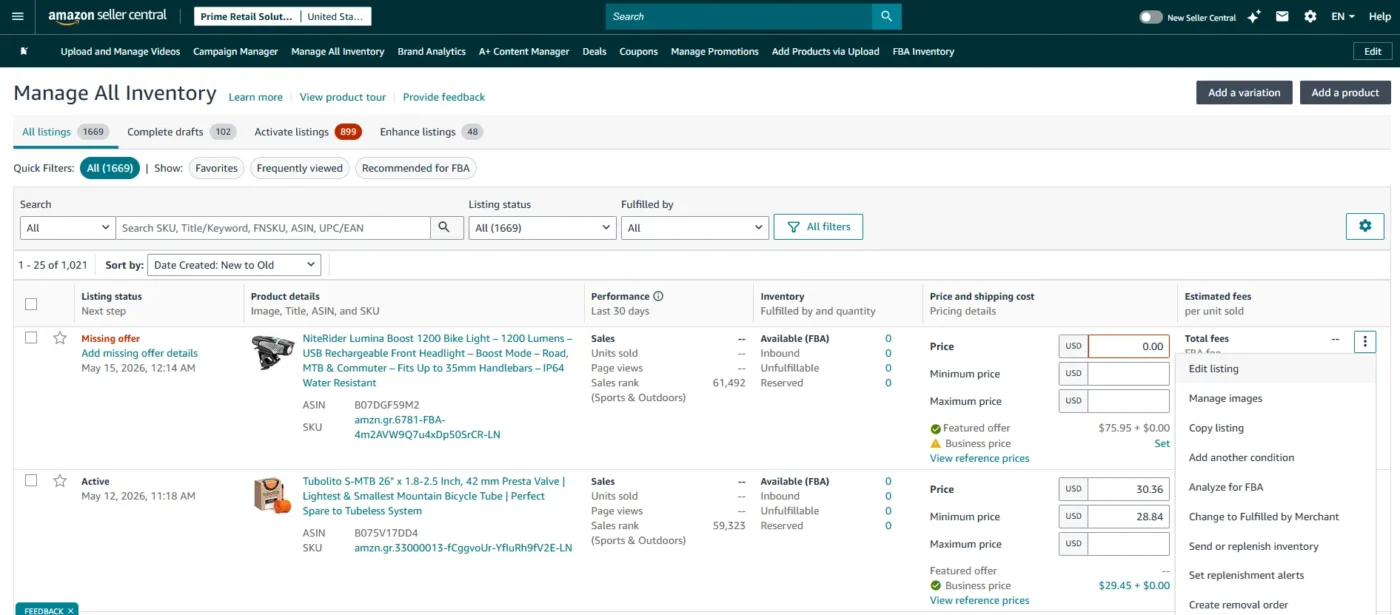
Step 4: Go to the “Product Details” Tab
Inside the listing editor, you’ll see several tabs at the top, Product Details, Images, Offer, Variations, Safety & Compliance, etc. Click on Product Details.
Step 5: Find the “Brand Name” Field and Update It
Scroll down until you see the Brand Name field. Clear the existing entry and type in the correct brand name exactly as you want it to appear on the listing.
Pro tip: Make sure the brand name you enter is consistent with your packaging, product inserts, and any trademark documentation you hold. Amazon can flag inconsistencies later.
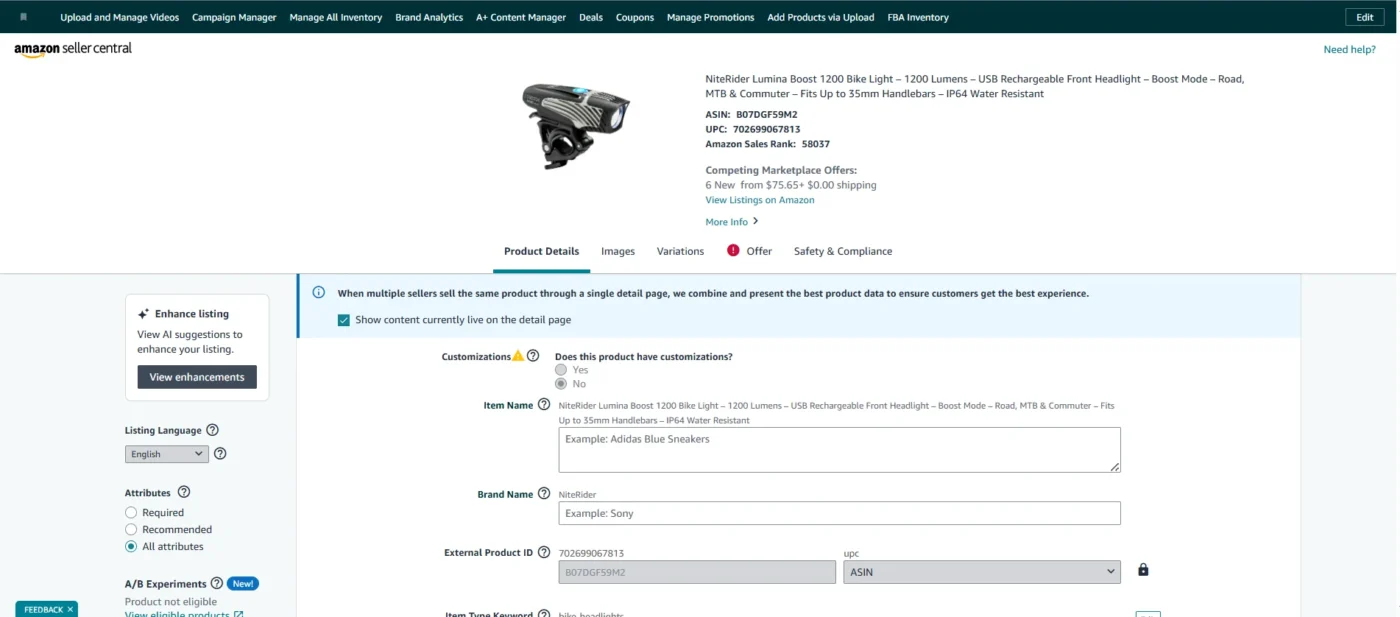
Step 6: Save and Submit
Scroll to the bottom and click Save and Finish. Amazon will process the change, which can take anywhere from a few minutes to 24 hours to reflect on the live listing.
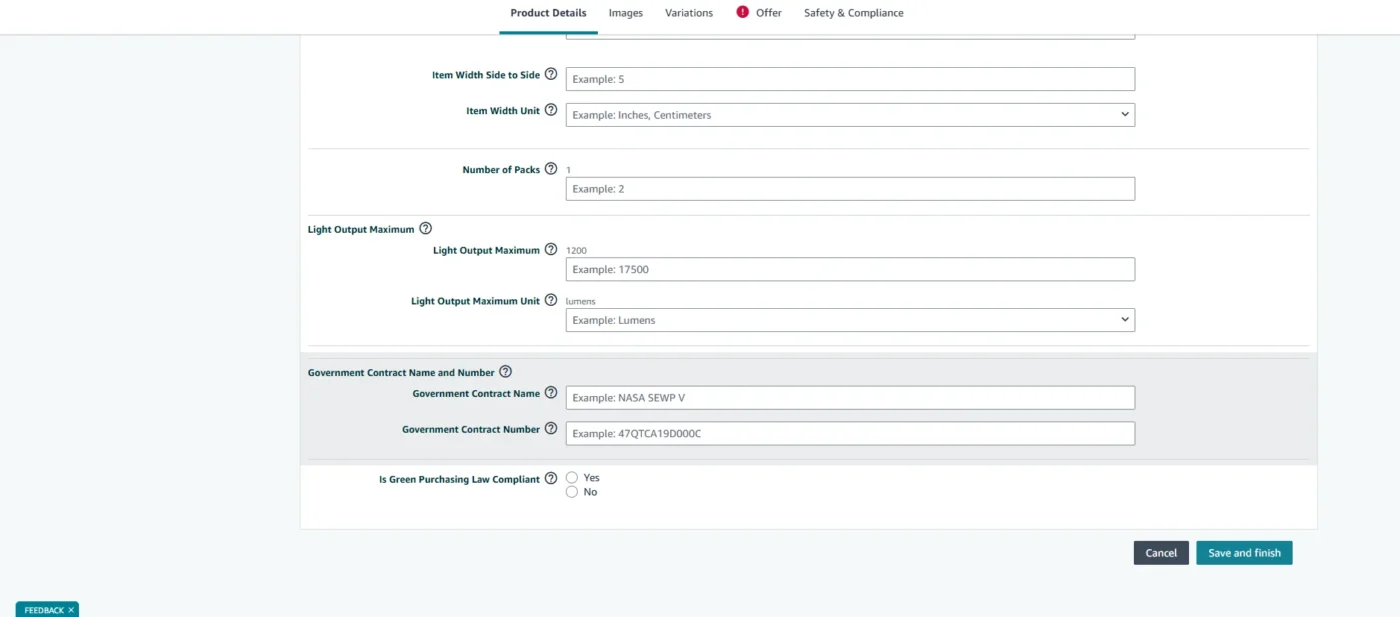
What to do if the Brand Name field is greyed out or locked:
This is where it gets frustrating. If you can’t edit the field, it means one of the following:
- The listing is Brand Registered by another seller or brand owner
- The ASIN is part of Amazon’s catalog and is being contributed to by multiple sellers
- Amazon has locked the field due to prior disputes or catalog alerts
In this case, you’ll need to move to Method 2 below.
Method 2: How to Change Brand Name on Amazon Seller Central via a Support Case
This is the most reliable method for changing a brand name on an Amazon listing when the field is locked, the listing has sales history, or your self-edit attempt didn’t stick. Filing a case puts a human (or a team of humans) on the task.
When to use this method:
- The brand name field is greyed out and uneditable
- You tried to self-edit, but the changes didn’t save
- The ASIN belongs to Amazon’s shared catalog
- The listing has significant sales history
Step 1: Go to Seller Central Help
From your Seller Central dashboard, click Help in the top-right corner, then select Get Support.
Step 2: Select the Right Support Category
Click Selling on Amazon, then select Products and Inventory from the options. From the next menu, choose Fix a product page or Product listing issue (the exact label may vary slightly based on your marketplace).
Step 3: Enter Your ASIN and Choose the Issue Type
You’ll be prompted to enter the ASIN of the affected listing. After entering it, select Brand Name as the field you need to correct.
Step 4: Write Your Case Using the Right Language
This step is critical. Amazon’s support team responds much better to clear, factual, professional language. Avoid emotional appeals. Here’s a structure that works:
“I am writing to request a brand name correction on ASIN [XXXX]. The current brand name displayed is [incorrect name]. The correct brand name should be [correct name]. This product is manufactured/sourced by [your brand/company], and the current name was entered incorrectly during listing creation. I have attached supporting documentation for your reference. Please update the brand name field accordingly.”
Keep it short. Keep it factual. Don’t over-explain.
Step 5: Attach Supporting Documentation
This is what separates approved cases from rejected ones. Attach whichever of the following applies to you:
- Supplier invoice showing your brand name on the product
- Product images showing the brand name printed on the packaging or product itself
- Trademark registration certificate if you hold a trademark
- Brand authorization letter if you’re an authorized reseller
The more credible your documentation, the faster the case gets resolved.
Step 6: Follow Up and Track the Case
Amazon typically responds within 24–72 hours. If you don’t hear back, follow up once at the 48-hour mark. You can track your case under Help → Case Log.
If your case gets rejected, don’t panic. Re-read the rejection, understand the specific reason they gave, gather any missing documentation, and resubmit with a clearer explanation. Persistence, paired with the right documentation, almost always works.
Method 3: How to Change Brand Name in Amazon Brand Registry
If you’ve enrolled a brand in Amazon Brand Registry, the process for an Amazon brand name change is more formal. Amazon ties your registered brand name directly to your trademark, so changes aren’t made lightly.
This method applies to you if:
- You are the brand owner enrolled in Amazon Brand Registry
- You want to update the brand name associated with your Brand Registry enrollment
Step 1: Log into Amazon Brand Registry
Go to brandregistry.amazon.com and sign in using your Seller Central credentials (or Vendor Central, if applicable).
Step 2: Navigate to Your Brands
From the top menu, go to Manage → Your Brands. You’ll see a list of all brands you have enrolled.
Step 3: Submit an Update Request
Click on the brand you want to update. Look for an option to Edit or Update brand information. Depending on your marketplace, this may redirect you to a support form specific to Brand Registry updates.
Step 4: Provide Trademark Documentation
Amazon requires that any Brand Registry brand name match your registered trademark. If you’re changing the brand name, you’ll need to show that your trademark has also been updated to reflect that new name. This typically means:
- Updated trademark registration certificate from the relevant IP office (USPTO for the US, IPO for the UK, etc.)
- A statement explaining the reason for the brand name change
Step 5: Wait for Approval and Monitor Status
Brand Registry updates can take longer than standard Seller Support cases, sometimes 5–10 business days, or more if additional review is required. Check back regularly under Manage → Your Brands to track the status.
Important: You cannot simply swap brand names in Brand Registry without trademark backing. If your trademark hasn't changed, Amazon will not approve the name change through this route. In that case, your only option is to either update your trademark first, or delist and re-enroll under a corrected brand.
How to Change Brand Name on Amazon for Bundles and Variation Listings
If the ASIN you need to fix is part of a parent-child variation group or a bundle listing, there are a few extra things to keep in mind.
For Variation Listings (Parent-Child ASINs):
Brand name changes typically need to happen at the parent ASIN level. If you only edit a child ASIN, the brand name may revert to whatever the parent carries. Here’s what to do:
- Step 1: Identify the Parent ASIN of the variation. You can find this in the listing editor under the Variations tab, or by looking at the ASIN in the Amazon catalog.
- Step 2: Open a Seller Support case (Method 2) referencing the Parent ASIN, not the child. Make sure to mention that it’s a variation listing.
- Step 3: Request that Amazon update the brand name at the parent level so it propagates down to all child ASINs.
For Bundle Listings:
Bundle listings follow the same process as standard listings, but you’ll want to double-check that the brand name you’re requesting matches the primary product in the bundle. Amazon typically uses that as the reference for the brand field.
Why Brand Name Mismatches Cause Listing Suppression:
Amazon’s catalog quality algorithms look for consistency. If a child ASIN carries a different brand name than its parent, or if the brand name on the listing doesn’t match what’s printed on the product in your images, Amazon may suppress the listing or flag it for review. Fix the root cause, don’t just patch the surface.
4 Common Errors When Changing Brand Name on Amazon (And How to Fix Each One)
Even when you follow the right steps, you’ll occasionally run into roadblocks. Here are the most common ones and exactly what to do:
1. “Brand Name Cannot be Changed” Message
This usually appears when the ASIN is part of a shared catalog or is Brand Registered by another brand. You cannot self-edit in this case. File a Seller Support case (Method 2) and include documentation proving your right to the brand.
2. Brand Name Field is Greyed Out and Uneditable
This means the field has been locked by Amazon or by a Brand Registered seller. Again, your path forward is a support case. In your case, explicitly mention that the field is locked in the listing editor and that you’re requesting a back-end update.
3. Support Case Gets Rejected
Read the rejection carefully. The most common reasons are insufficient documentation, a vague case description, or the ASIN being owned by another brand. Respond to the same case thread with more specific documentation and a revised explanation. Don’t open a new case, thread continuity helps.
4. Brand Name Was Changed, but Isn’t Reflecting on the Live Listing
Amazon’s catalog can take up to 24 hours to update. If it’s been more than 24 hours and the change still isn’t showing, do a hard refresh on the listing page or check from a different browser. If it still shows the old name, check your case log to confirm the change was actually approved (sometimes agents mark a case as resolved without making the update). Follow up on the same case.
How Long Does it Take to Change Brand Name on Amazon?
Here’s a realistic timeline of how long it takes to change brand name on Amazon:
| Method | Typical Timeframe |
| Self-edit via Seller Central (Method 1) | A few minutes to 24 hours |
| Support case via Seller Central (Method 2) | 24–72 hours (can extend to 5–7 days if escalated) |
| Brand Registry update (Method 3) | 5–10 business days |
How to Check the Status of Your Amazon Brand Name Change:
- For self-edits: check the live listing directly after 24 hours
- For support cases: go to Help → Case Log in Seller Central
- For Brand Registry updates: go to Manage → Your Brands in Brand Registry
If a case is taking longer than expected, follow up with a polite, single message referencing your case number. Avoid opening duplicate cases, it resets your queue position.
5 Tips to Avoid Brand Name Issues in the Future
Getting a brand name wrong in the first place is more common than you’d think, and more costly than sellers realize. Here’s how to avoid going through this process again:
- Set the brand name correctly before your first sale. Once a listing has a sales history attached to it, Amazon treats it more cautiously when changes are requested. It’s far easier to fix a brand name before orders come in.
- Keep your brand name identical across all touchpoints. The name you use on your packaging, supplier invoices, website, and trademark should all match exactly what’s in your Amazon listing. Inconsistencies are what cause cases to be rejected.
- Avoid using generic words as your brand name. Brand names like “Premium,” “Quality,” or “Best” are flagged by Amazon and often rejected or overwritten. Use a distinctive brand name that’s uniquely yours.
- If you’re enrolling in Brand Registry, get your trademark first. Trying to enroll with a pending trademark is possible in some markets, but it limits what you can do and complicates future changes. Resolve trademark status before enrolling if you can.
- Document everything: Keep copies of your invoices, trademark certificates, and any authorization letters in an easily accessible folder. When you need them for a support case, you’ll want to attach them immediately, delays in documentation are the number one reason cases drag on.
Conclusion
If you are wondering how to change brand name on Amazon, it may seem like a simple update, but as you’ve seen, the process can quickly become complicated depending on Brand Registry status, listing history, catalog restrictions, and Amazon’s internal policies. The key is identifying the right path early, backing every request with proper documentation, and handling Seller Support strategically to avoid unnecessary delays and repeated rejections.
A correctly managed brand name not only protects your catalog integrity but also strengthens customer trust, preserves Brand Registry benefits, and prevents future listing issues. If you’re dealing with locked fields, rejected cases, or complex catalog challenges, AMZDUDES, a full-service Amazon agency, can help manage the process from start to finish and resolve brand-related issues efficiently. Ready to get your listing fixed without the back-and-forth?
Book a free consultation call with AMZDUDES today.
Frequently Asked Questions
1. How do I change a brand name on Amazon?
To change brand name on Amazon, go to Seller Central → Manage Inventory → Edit Listing → Product Details and update the brand field if it is editable. If the field is locked, submit a Seller Support case with proof such as invoices, product images, or trademark documentation.
2. How do I change a brand name on an Amazon listing if the field is locked?
If you want to change brand name on Amazon listing, but the field is greyed out, Amazon likely restricted edits due to Brand Registry or catalog controls. In this case, open a support case through Seller Central and provide documentation supporting the change.
3. Can I change my Amazon brand name after Brand Registry enrollment?
Yes, an Amazon brand name change is possible after Brand Registry enrollment, but Amazon requires updated trademark documentation that reflects the new brand name. Approval can take several business days.
4. How long does it take to change a brand name on Amazon Seller Central?
The timeline for how to change brand name on Amazon Seller Central depends on the method used. Direct edits can update within 24 hours, while Seller Support cases usually take 24–72 hours, and Brand Registry requests may take 5–10 business days.
5. Why won’t Amazon let me change my brand name?
Amazon may prevent you from changing a brand name if the listing has sales history, belongs to a shared catalog, or is associated with another Brand Registered seller. To successfully change brand name on Amazon, you may need to submit evidence and request a backend catalog update.